Microsoft Power BI Integration (Preview) #
Report outputs can be accessed directly via Microsoft Power BI using the REST API. This allows for communications reporting to be combined with other data sources using the Power BI platform.
info
To access reports via Power BI, the REST API must be enabled on the reseller and customer accounts. Please refer to the API Documentation for more information.
warning
Currently the connector is not supported on the PowerBI service natively, so reports must be created and refreshed using Power BI Desktop. Once the connector is finalised, support for the PowerBI service will be added.
The On-Premise Gateway can be used to refresh published reports.
Installation #
Custom Connector Download #
~.Dimensions.~ provides a custom connecter which must be side loaded into Power BI Desktop to allow access to the reports. Depending on the version of Power BI installed, the custom connector is side-loaded in one of two ways:
warning
The ~.Dimensions.~ Power BI custom connector is currently in BETA. Once the connector is finalised, it will be made available in the official Microsoft Power BI marketplace.
- Download the latest version of the ~.Dimensions.~ Power BI custom connector.
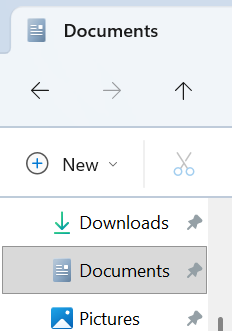
- Copy the file to your 'Documents\Power BI Desktop\Custom Connectors' folder on your computer:
note
If the 'Power BI Desktop \ Custom Connectors' folders do not exist, they will need to be created manually.
warning
If you have OneDrive configured to sync your Documents folder, make sure you put the Custom Connector in the OneDrive Documents folder.
Once the custom connector has been copied to the correct location, Power BI Desktop must be configured to allow uncertified connectors.
Enable Custom Connector Side-loading #
- Open Power BI Desktop, then navigate to File -> Options and Settings -> Options.
- Under 'Security -> Data Extensions', select 'Allow any extension to load without validation or warning'.
- Restart Power BI Desktop to apply the changes.
~.Dimensions.~ Connector Configuration #
To complete this step, you will need the client ID and client secret from the REST API configuration.
- Open Power BI Desktop, then select 'Get Data' option from the ribbon.

- Search for '~.Dimensions.~' in the search box.
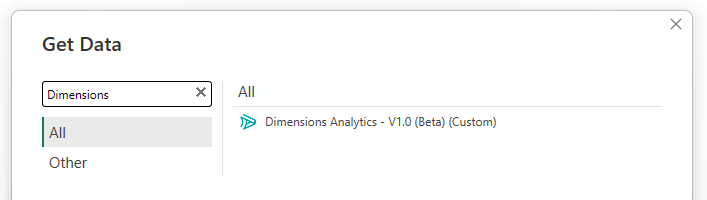
- Select the '~.Dimensions.~ Analytics' connector, then press 'Connect'.
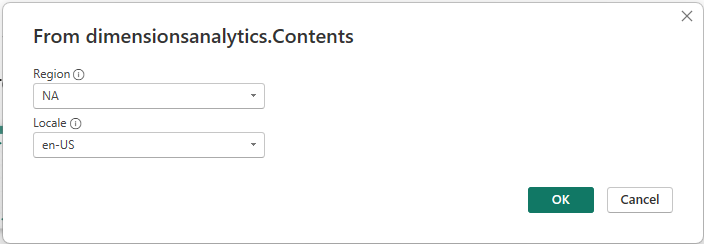
- Select the correct region from the drop down list.
- Enter the 'Client ID' and 'Client Secret' from the REST API configuration.
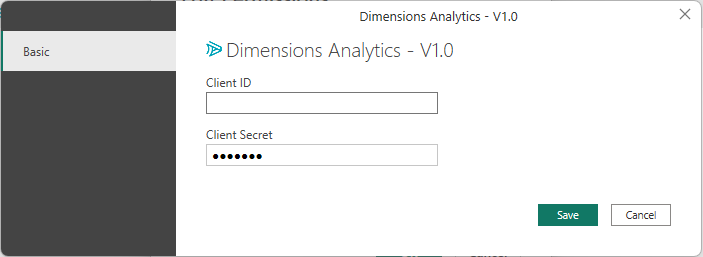
- Press 'OK' to connect.
If the client id and secret are valid, the connection will be made and a query will be returned - DO NOT PRESS 'Load' press 'Transform Data'. Follow the next steps to select the report data you wish to import by Transforming the query.
note
If on step '2' the '~.Dimensions.~ Analytics' connector does not appear in the search results, check that the custom connector has been copied to the correct location and that Power BI Desktop has been restarted.
Transforming Data #
- Select 'Transform Data' to open the Power Query Editor.
You should be present with a list of available 'Workspaces' on the account.
- Click on the 'Table' link in the 'Report List' column for the workspace you wish to access.
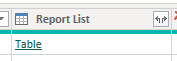
You should now be presented with a list of available reports in the selected workspace.
- Click on the 'Function' link in the 'Report Data' column for the report you wish to access.
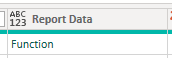
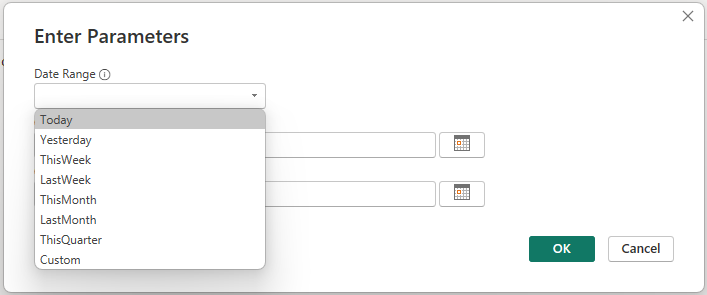
*You should now be presented with the 'Ener Parameters' pop-up.
-
Select one of the pre-defined contextual date ranges or select 'Custom' and enter a fixed range. Then press 'OK'
-
Rename the query to a meaningful name for the report you are accessing.
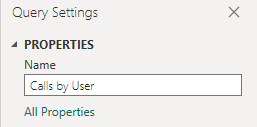
- Press 'Close & Apply' to load the data into Power BI Desktop.

The data source should now be available in the main Power BI Desktop window and can be used like any other data source to create reports and dashboards.
note
Repeat the steps above to add additional reports as required.
Updating API Credentials #
If the API client ID or secret need to be updated, this can be done by navigating to 'Data Source Settings' in Power BI Desktop.

Schema Updates #
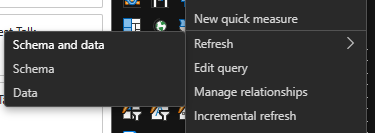
If fields have been added or removed from the report(s) being run from Power BI, the query schema may need to be refreshed to reflect the changes.
To do this, right-click on the Query in the right-hand pane of Power BI, then select 'Refresh -> Schema' from the drop down menu.
note
Workspace and Report list requests can be cached up to 1 hour. If new reports or workspaces have been added and are not appearing in the list, try refreshing the data source or waiting up to an hour for the cache to expire.
Errors #
If errors are encountered when opening a worksheet with ~.Dimensions.~ data or refreshing the data, this usually means there is an issue with the schema. Follow the steps in the previous section to refresh the schema.
If fields have been removed from the report and are still being referenced in the Power BI UI, you will need to click on 'Fix this' to remove the missing fields from the query: